
Add information to [[indent]]
Open the [[indent]] that you want to work on by going to [[indents]] > Search and then finding it in the [[indents]] table - you can search in a number of ways (eg by Description, Customer, Brand, etc)
In the [[indent]] form you can now click on the relevant tab and enter the required information.
Colourway Quantities
Section titled “Colourway Quantities”Once you have created a [[indent]] and saved it, you’ll need to enter the number of units to be ordered for each Size Point for the Colourway, and then click Save.
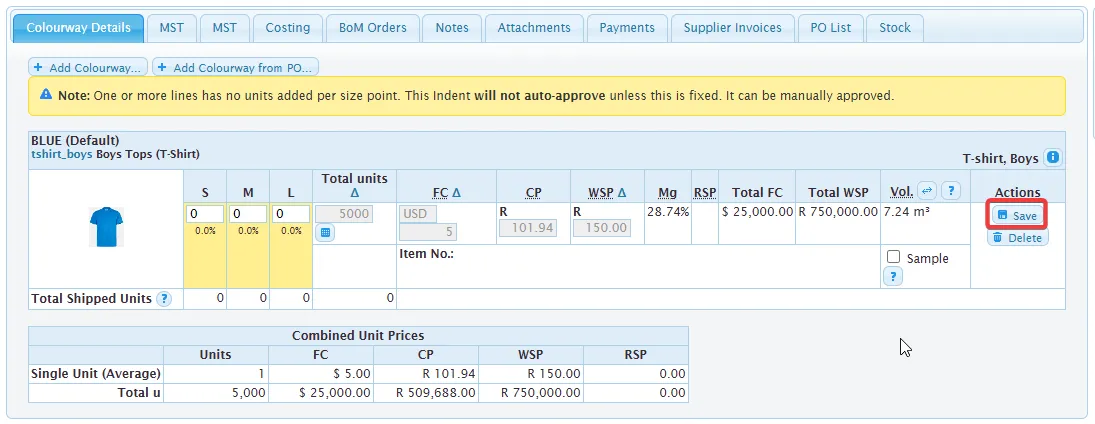
You can then add additional Colourways to the [[indent]] and enter the units for each Size Point - these could be extra Colourways from the [[style]] from which you created the [[indent]], or from other [[styles]] entirely.
Costing
Section titled “Costing”When you create a [[indent]] from a [[style]], the Costing from the [[style]] is carried over to the [[indent]]. You can make updates to the Costing at this stage to account for any changes from the Supplier, updated exchange rates, or other changes. After you have made the changes, click Save.
If you make changes to the Costing on the [[indent]], the Gross Margin is re-calculated - if this falls below the Target Margin for your Wholesaler, the [[indent]] will be flagged to say that the costing auto-approval has been rejected, and you will either have to change the Costing or request manual approval.
You can add Notes to the [[indent]] and specify whther these should be included in the [[indent]] PDF that is sent to the Supplier, or whether they are for internal use only.
Click on the Notes tab and select a Type (General, QA, Packing Instructions, Product Comments, Seal No, or Internal Only) and then enter the note and click Add.
Attachments
Section titled “Attachments”You can add Atachments to the [[indent]] - these could be additional asrtwork files or any other type of files. For each one you can specify whether it is for internal only, or whether it should be emailed as an additional attachment when you send the [[indent]] to the Supplier.
[[indent]] Statuses
Section titled “[[indent]] Statuses”Estimated > Booked > Shipped > GRNd > Completed